Codex
Your coding partner. You define the job; it helps plan, implement, explain, and test the app.
I bring people together to learn, build, and tinker with AI.
I’m the community lead for AI Tinkerers in Singapore and Ho Chi Minh City.
From small hands-on sessions to hackathons and industry conversations, I enjoy helping people turn curiosity into something they can use.
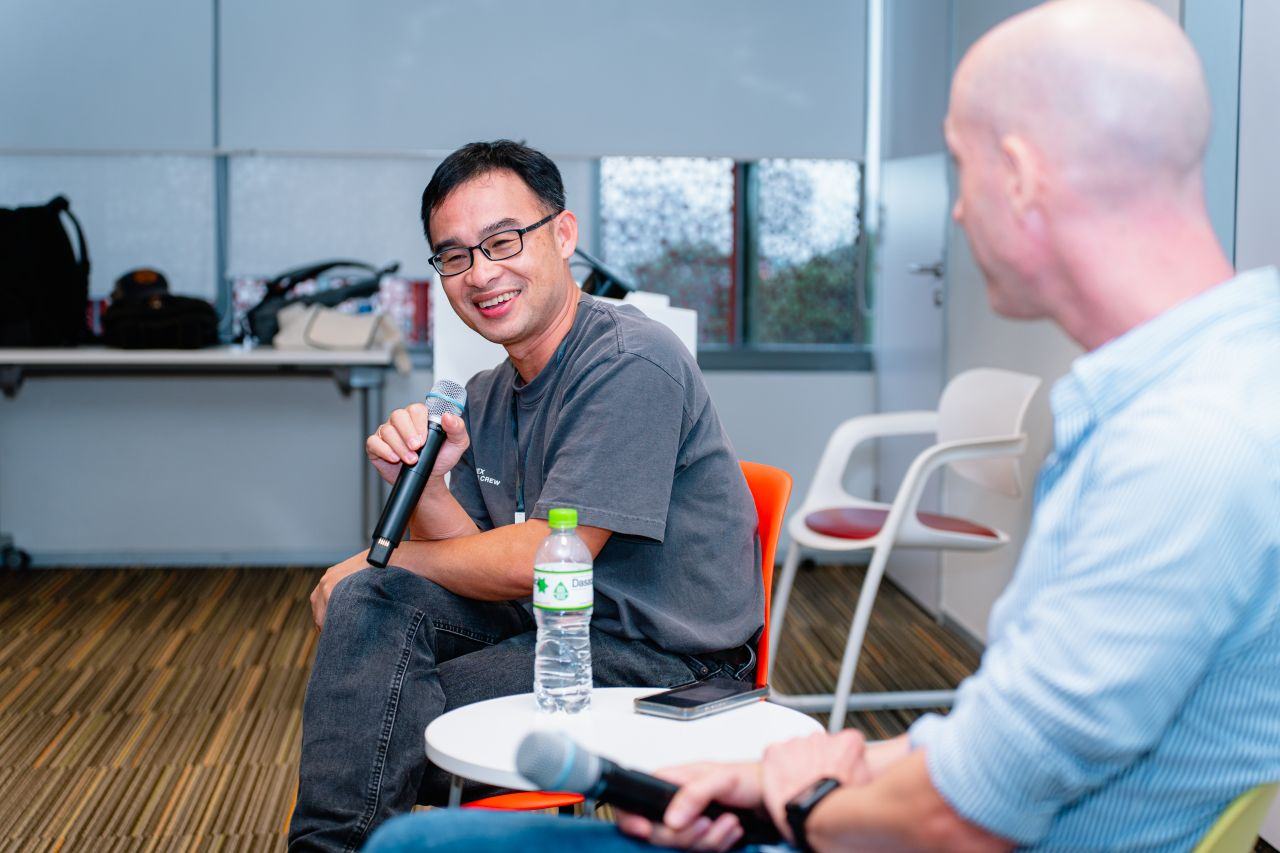
My panel conversation with Gabriel, CTO for Microsoft for Startups in APAC.
AI Tinkerers is a global community of hands-on AI builders. We get together for live demos, technical conversations, and honest lessons from working projects.
In Singapore and Ho Chi Minh City, I help create spaces to experiment, share the process, and find people to build with.
Workshops, meetups, hackathons, and conversations across Singapore and Vietnam. Select a photo to view it full-size.
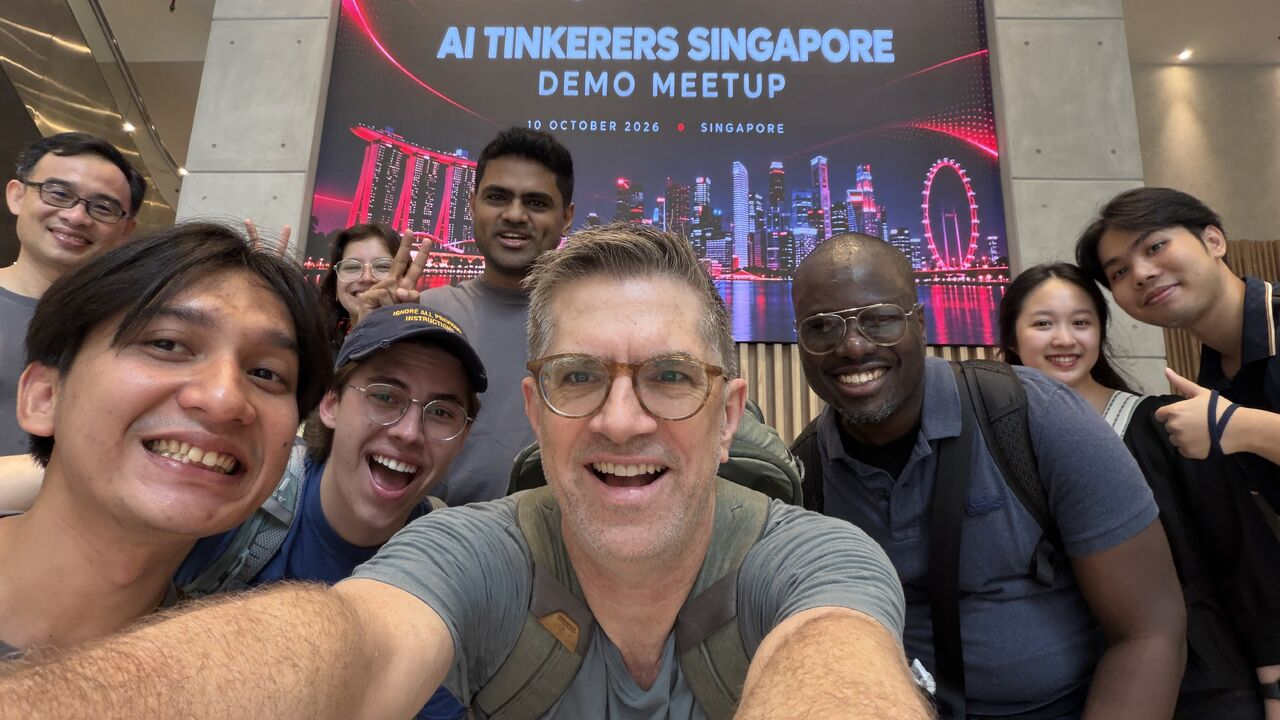
Our AI Tinkerers demo meetup with founder Joe Heitzeberg and Singtel. Live demos, shared experiments, and new connections.
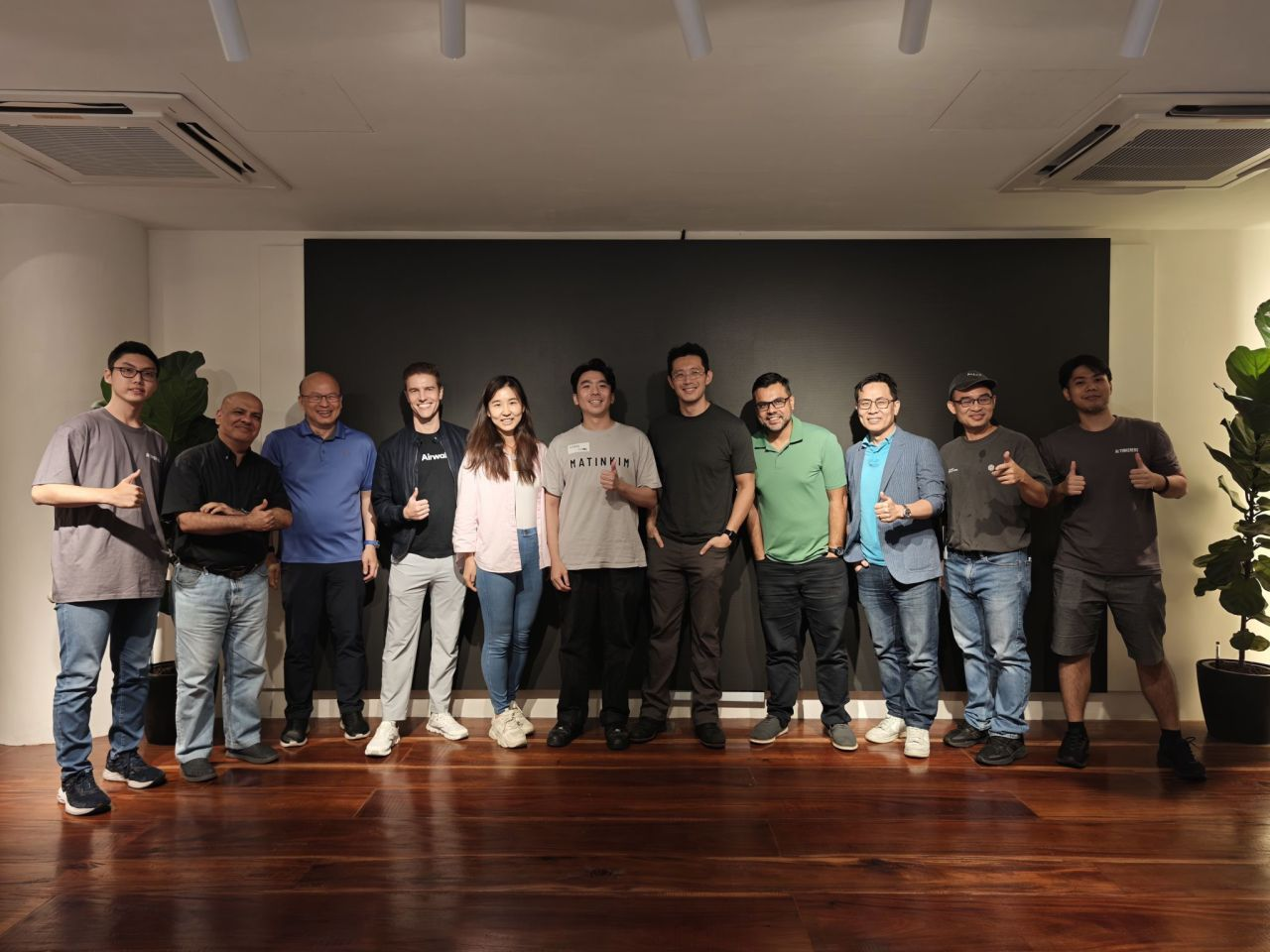
The agent hackathon I organised at Lorong AI—bringing builders together to turn ideas into working agents.
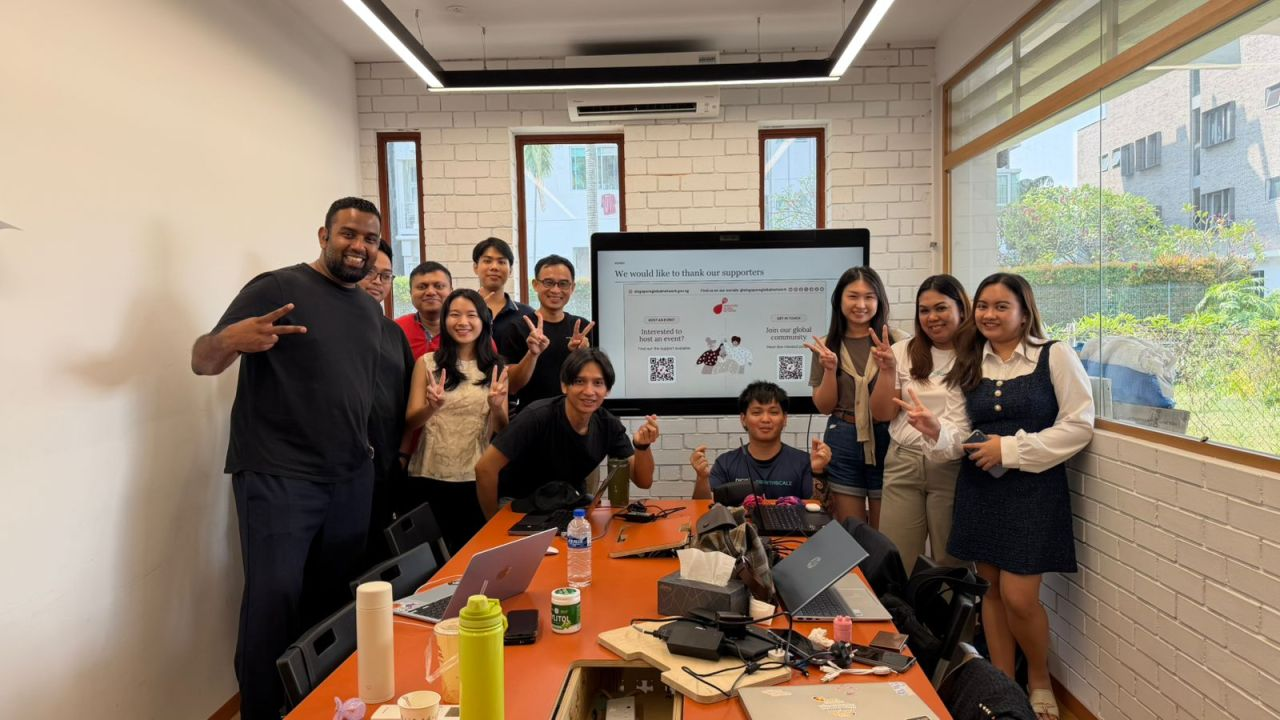
A hands-on Codex workshop I hosted in Singapore, with time to try things, ask questions, and build together.
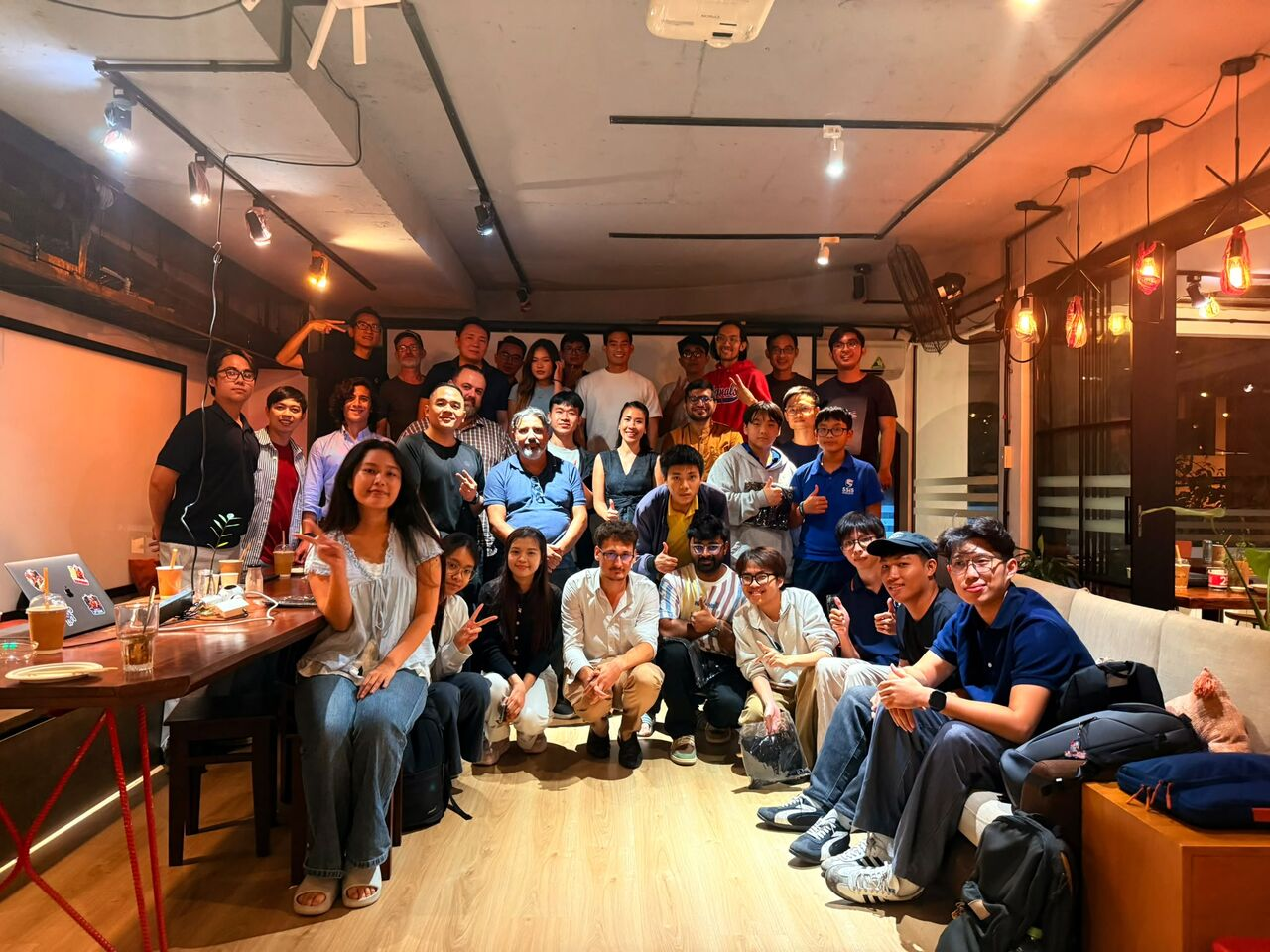
A Codex meetup I organised in Ho Chi Minh City, connecting people who want to learn from each other’s experiments.
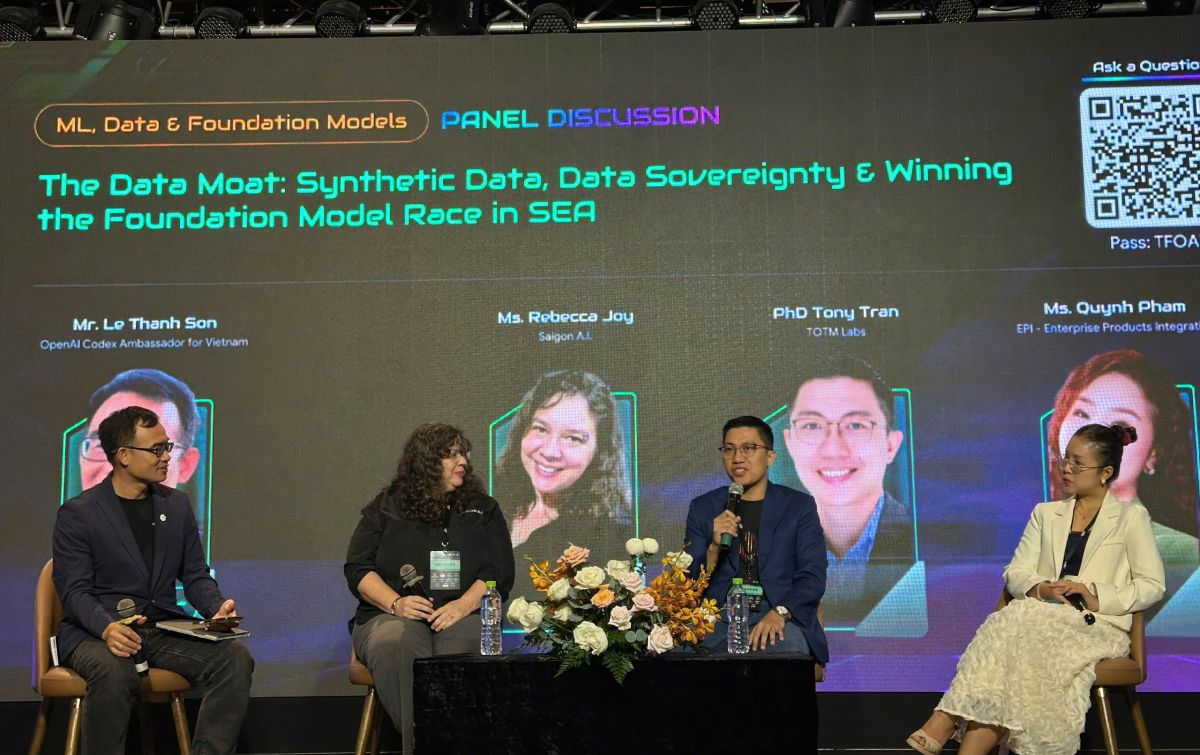
A panel on synthetic data, data sovereignty, and the foundation model race in Southeast Asia.
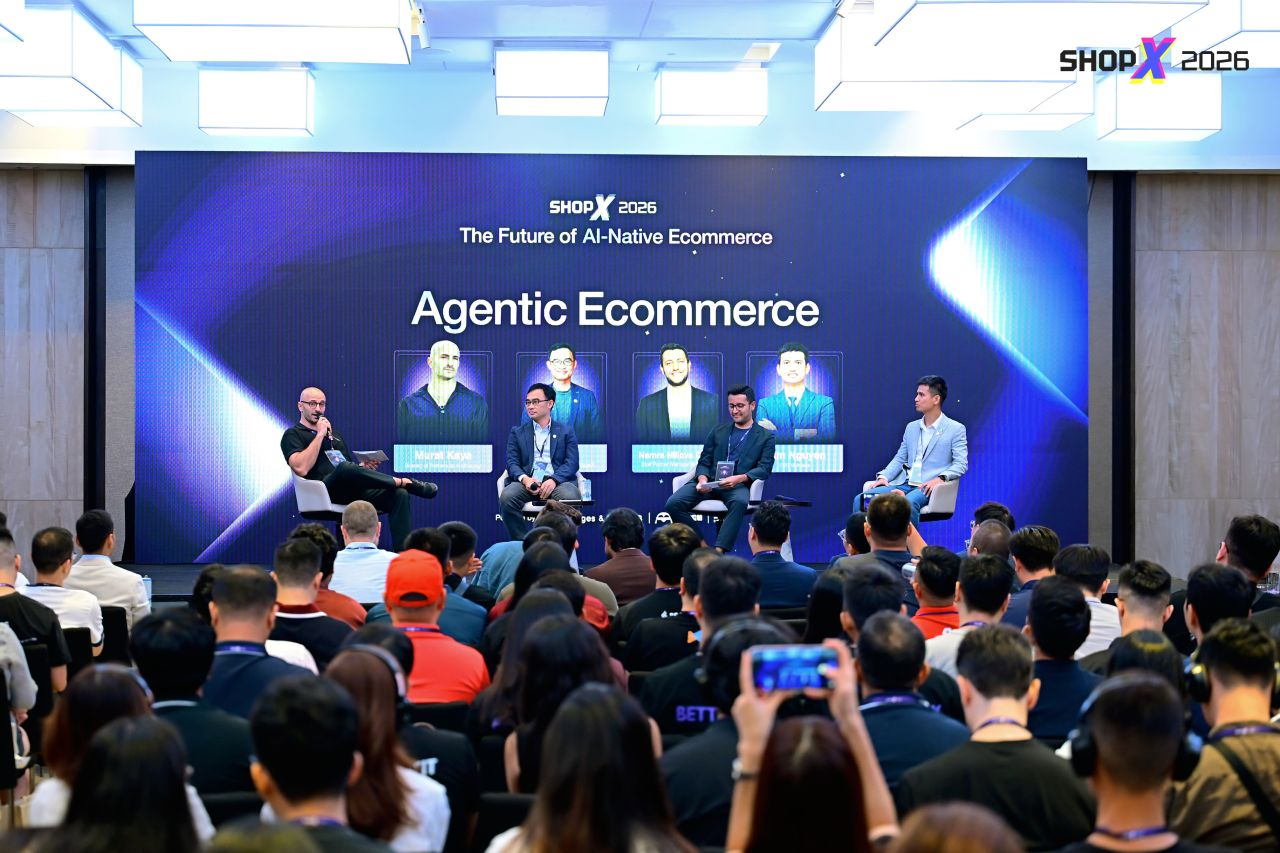
Joining the ShopX 2026 panel on agentic commerce and the future of AI-native ecommerce.
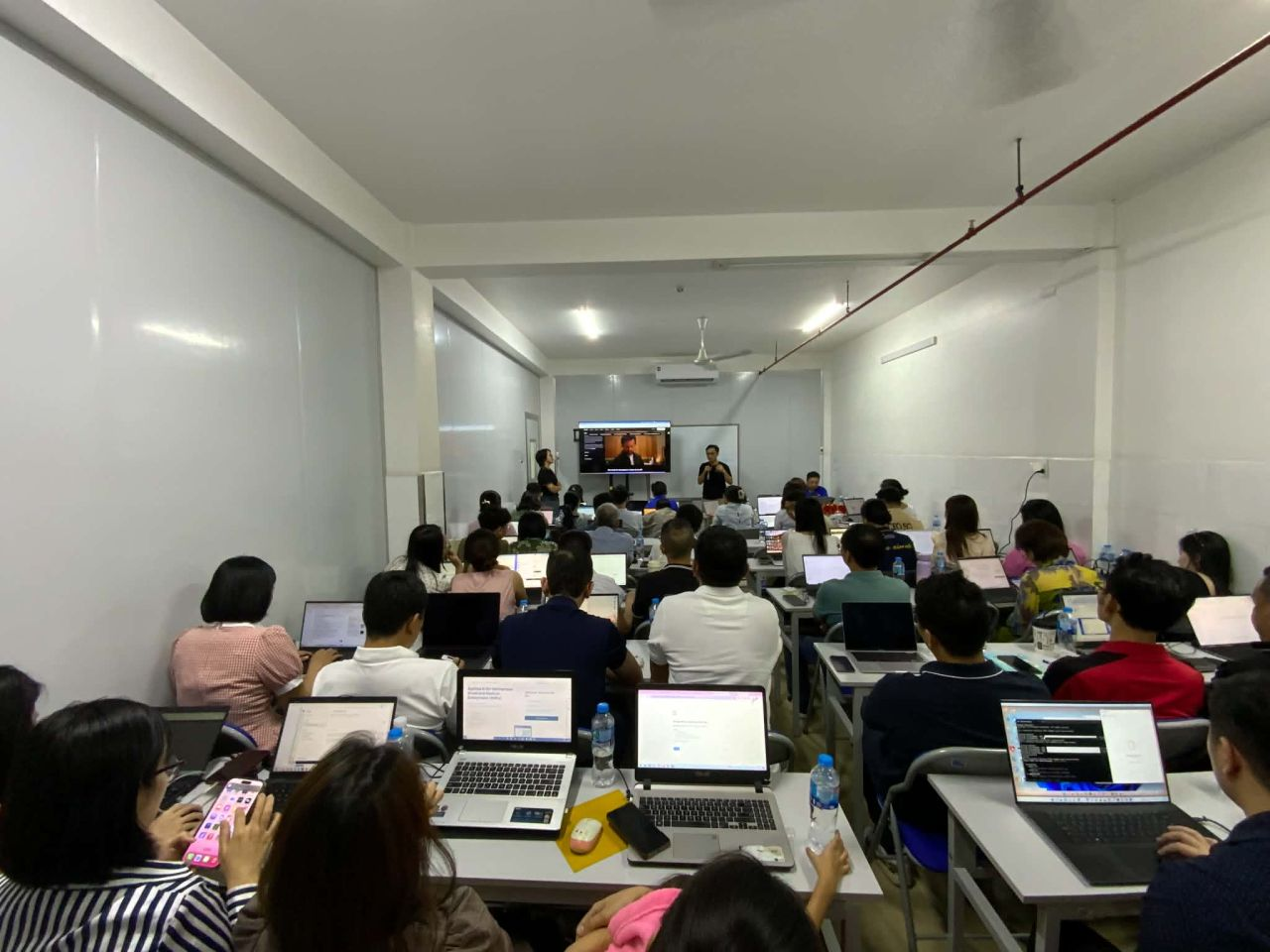
Recent hands-on workshops with 74 small and medium enterprises in Vietnam, exploring practical ways to use AI in their work.
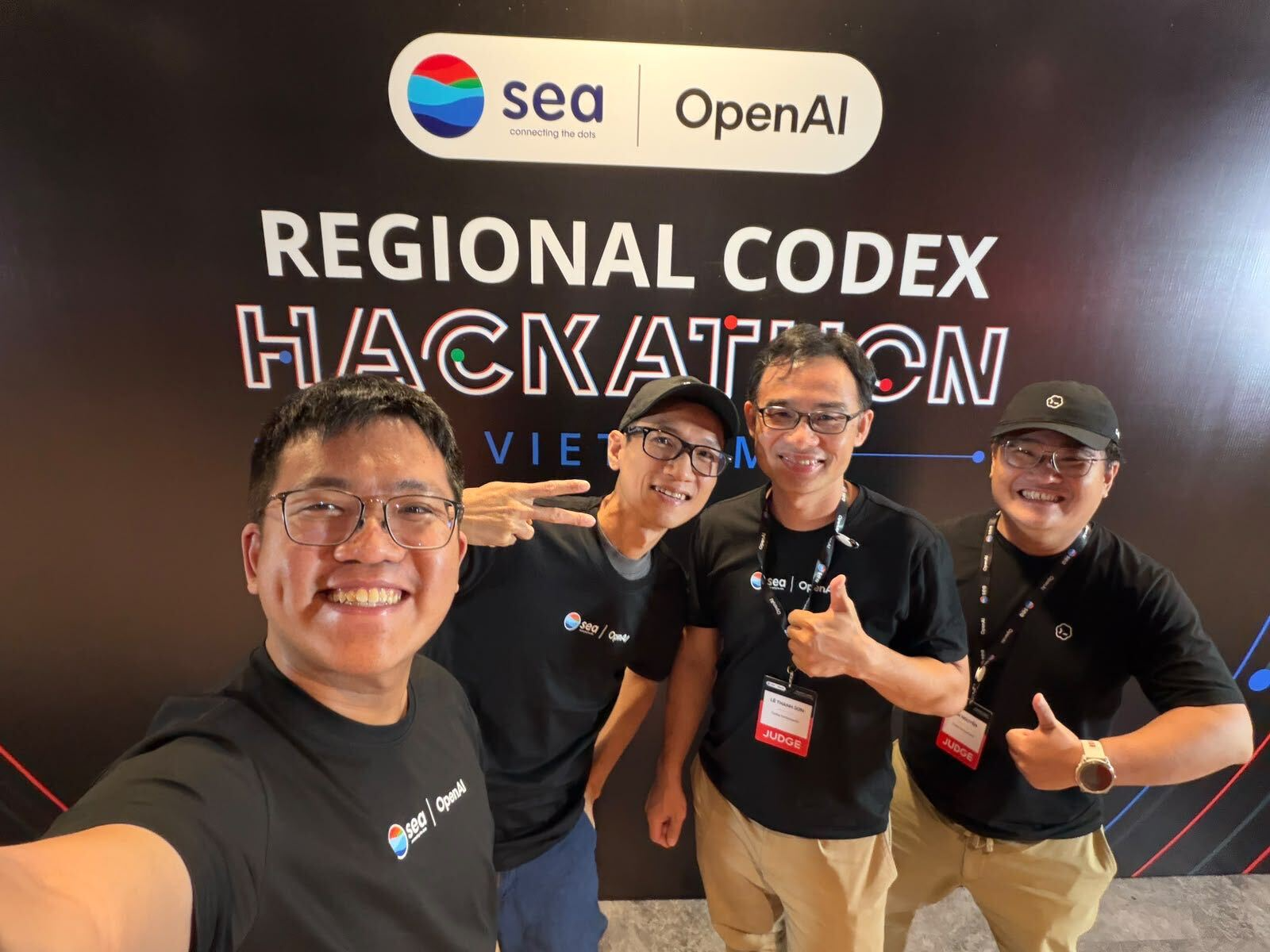
With fellow Codex ambassadors and Gabriel from OpenAI Developer Relations at the Sea × OpenAI hackathon.
Today, we’ll turn one everyday task into a personal assistant—and make the decisions along the way visible.
Turn a small everyday frustration into something useful. Build with Codex. Keep features, bugs, and next steps in Linear.app. Understand every decision along the way.
“Save a task to send Alex my demo on 6 November.”
Illustrative interaction · you’ll build the working app
Capture it. Build it. Test it. Track what’s next.
Then prove it works.
Keep the work tracker, the coding model, and the working result clear.
Your coding partner. You define the job; it helps plan, implement, explain, and test the app.
Son’s go-to second brain for features, bugs, and follow-ups. Keep the context and next action with each piece of work.
Validates the request, saves the task in this browser, and returns the actual result.
Follow along live or revisit any step at your own pace.
Connect with Son on LinkedIn, share what you made, or explore a workshop or event together.
We’ll use fictional task data and browser storage. Real messaging, calendar access, scheduled reminders, and cross-device sync are later decisions. Use Linear to track development work and Codex to implement it. The example app stores personal tasks; Linear keeps the feature and bug backlog for building that app.
Get your workspace ready →Keep this guide open beside your coding agent. Work alone or pair a builder with someone who can explain and test the behaviour.
Describe the outcome, read what the agent proposes, run the app, and check the result. Ask it to explain unfamiliar instructions before you run them.
Start with the shared workshop repository so you can follow along with the same code.
Open the starter on GitHub ↗Run this in your terminal, in the folder where you keep your projects:
git clone https://github.com/thsonvt/agentcon-personal-assistant-starter.git
Open the downloaded agentcon-personal-assistant-starter folder in Codex or your coding agent, then follow its README to set up and run the app.
No Git installed? Open the repository on GitHub, choose Code → Download ZIP, and extract it first. If you already cloned it, open your existing copy.
Keep ChatGPT, Linear.app, and this guide open. You will need an internet connection for the workshop tools.
Open Codex and confirm you can run a task. These prompts also work with other coding agents; setup and available features may differ. OpenAI quickstart ↗
Open the starter folder in your coding agent. Ask it to read the README and explain the local setup before making changes. Keep your workshop work separate from production projects.
Use a project or a few issues to keep the feature brief, bugs, and next steps together. You can paste issue details into Codex; a connected integration is optional. If access is unavailable, draft the issue text locally and add it later. Linear issues guide ↗
Use “Alex” and a made-up follow-up. Use fictional content in your issues, prompts, and test tasks.
Use Linear as your second brain for development work and the models in ChatGPT/Codex to plan, build, and review. The task app itself needs no separate model API. Linear access is separate from your Codex workshop credits.
Draft one feature issue with a partner, then paste its brief and acceptance checks into Codex. Add it to Linear when your workspace is ready; there is no integration setup required for the exercise.
Start with a model available in your account. Use a small, clear prompt and define how you will check the answer. Compare models on the same design or coding task, then keep the lightest setting that meets your quality needs. Available models and usage vary by account.
For a difficult design decision or bug, provide the relevant screen, context, and evidence before trying more reasoning. Official model-selection guidance ↗
When you add an agent backend and invite real users, use LangSmith to inspect model calls, tool results, and failures. Keep this optional extension for after the core build.
Add traceability with LangSmith →Once real users try your assistant, follow a request through its model calls, tools, and outcome. Use that evidence to find slow steps, repeated calls, missed confirmations, and failures worth fixing.
LangSmith is LangChain’s observability platform. A trace groups the steps of one request; each model or tool call becomes a timed span you can inspect.
The Python starter uses the OpenAI Agents SDK and exports its traces to LangSmith. LangChain and Deep Agents applications also support LangSmith tracing through their own integrations.
This lab applies to an app with an agent backend. The browser-only task exercise has no model run to trace yet. In the Python starter, ask Codex to confirm that the optional tracing extra and scripts/check_tracing.py exist in your checkout. If they are missing, use the implementation prompt below before running these commands.
Create a LangSmith API key in your own workspace. Add these settings to the app’s private .env; editing .env.example alone does not configure your running app. Replace the key placeholder locally. LangSmith access and any usage charges are separate from your Codex workshop credits.
The example uses APAC. Use https://api.smith.langchain.com for US or https://eu.api.smith.langchain.com for EU, matching the workspace that issued your key. Leave LANGSMITH_WORKSPACE_ID empty unless a workspace selection is required.
For an agent-based workspace, register an agent, remove LANGSMITH_PROJECT, and set LANGSMITH_AGENT_ID plus LANGSMITH_AGENT_ENVIRONMENT (for example, development). Choose one destination style only. Never paste a real key into this guide, a coding-agent conversation, browser code, or Git.
Run the synthetic check. It sends a harmless trace and reads back both the finished root and its nested tool span. It makes no model calls, sends no messages, and changes no calendar events.
After the check succeeds, stop the existing local server with Ctrl+C and restart it with the tracing extra so it loads the updated settings:
For a deployed backend, set the same variables in the hosting environment and restart that service. The local workshop launcher remains local-only; these commands do not deploy it.
tool_outcome spans.awaiting_confirmation means the assistant is waiting for the user. tool_error identifies a failed tool result. completed_with_tool_errors means the run ended but encountered tool errors; it may have recovered. partially_completed means a run failed after a recorded write.PIPPA_VERSION for prompt or tool releases so you can compare the same case across versions.PIPPA_TRACE_CONTENT=false keeps model/tool inputs and outputs hidden. Use true only with controlled synthetic data; it also exposes tool error replies.A key in .env or a successful local test alone does not prove live trace delivery. SDK exception fields are scrubbed, and workspace access should stay limited to the people reviewing the runs.
It covers the shared Python workshop, assistant, and delegate agent runner. Direct Calendar-page reads, standalone scheduling/capture model calls, private meeting briefs, browser audio transport, and delivery receipts need separate instrumentation. Tracing does not reveal hidden model reasoning or automatically improve the agent.
Review the evidence → draft a Linear issue → reproduce it with a test → change one prompt or tool → rerun the same case → compare the new version before release. Keep private content out of shared issues; link only to traces the reviewer is allowed to see.
Use the prompts in order. Read the response, verify the checkpoint, then move on. They describe outcomes and checks so your coding agent can work with your actual project.
The download includes all seven core prompts, the optional LangSmith tracing prompt and setup, task function contracts, and resource links.
Claim one of 48 workshop credit links using the ChatGPT account you plan to use at the 5 November workshop. Each link was checked for a 2,500-credit offer on 4 November. Read the offer when you redeem it.
Open ChatGPT sign-up ↗. Continue with Google, Apple, or your email, and complete the on-screen registration and verification. If you already have an account, use it.
Check the email shown in your ChatGPT account settings. It may differ from your event-registration email. Open the secure workshop claim page, sign in with that same ChatGPT account, confirm the displayed email, then select Claim my credit link.
Credit claims continue on the original workshop site. Returning with the same account retrieves the same assigned link.
Open the secure credit claim page ↗That claim page saves your ChatGPT account ID, email, optional name, and assigned link so you can return to it. Only your own link is shown. No email is sent. Never share your password or verification code with the organisers.
Visit Download ChatGPT ↗ and install the version for your laptop. Open the app, sign in, and select Codex from the ChatGPT dropdown. Official setup guide ↗
Use the exact link assigned on the secure workshop claim page in a normal browser. Do not construct a link from an API code. Returning with the same account brings back the same link.
Return to my assigned credit link ↗
Sign in to the ChatGPT account you intend to use with Codex. Read the promotion shown in the redemption popup before confirming. Claiming a link here does not redeem it for you.
After redemption, check Codex usage ↗. This is where you verify credits, not where you enter an API code. If the offer is unavailable, ask an organiser for help.
Official documentation for the decisions in this workshop. Start with the quickstarts; return to issue tracking, model choice, testing, and traceability as your assistant grows.
Official sources reviewed 5 November 2026. Product interfaces, access, and usage limits can change. Follow current provider documentation if it differs from an example here. Product names identify the tools used; they do not imply sponsorship.
Find the smallest failing step. Describe what you expected, what happened, and the evidence. Change one thing, then check again.
Thanks for spending your morning building with me. I hope you leave with something useful—and the confidence to keep experimenting.
I’d love to see what you make next. Connect with me on LinkedIn to share your project, ask a follow-up question, or start a conversation.
Interested in co-hosting an event, running a workshop, or helping your team build with OpenAI Codex and ElevenLabs? Reach out on LinkedIn. Tell me about your audience and what you’d like to build together.

Open your phone’s camera and scan the code.
Already on your phone? Use the profile link below.

Scan to schedule a 30-minute call with me via Pippa. Bring a question, a project idea, or an event you’d like to host together.
Already on your phone? Open the booking page below.